
Admissions
Screen Configuration
-
Navigate to Admissions on the left hand menu
-
Select the Gear icon
-
Select Load Layout
-
Select your role
-
Tiles will be populated on the screen based on your role selection
-
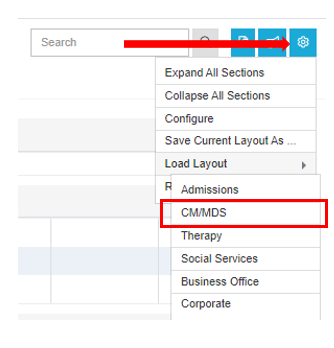
Navigating the top of the Admissions screen

Group
-
This is for filtering groups like Alert Email groups or if you happen to have any bookmarked patient set in your account.
Regions
-
Region of the SNF (Skilled Nursing Facility) you would like to view.
Facilities
-
Filters the exact facility information you would like to view.
Payer Type
-
Payer Type filters include the following:
-
Current Managed Care - patients that currently have a managed care payer
-
All
-
All Managed Care - patients that at any point during their stay had a managed care payer
-
Med A
-
Medicaid
-
Private Pay
-
Managed Medicaid
-
Status

-
Status filters include the following:
-
All
-
Admitted
-
Discharged
-
-
Remember to use the Refresh button and Clear filters icon as needed.

-
The patient, Reference No., Patient ID, and Admit Date are located at the top of the page.
-
When submitting a service request, please add the Patient ID if applicable. Please do not include PHI on any service request via email or the service website.
Search Field

-
This field will allow you to search by the following:
-
Patient Name/Information
-
Reference No
-
Patient ID
-
Additional Documents

-
This icon will allow you to access by the following:
-
CM Initial Assessment
-
Progress Notes
-
Physician Certifications
-
MC Preferred Vendor List
-
Quick LOB Update
-
Quick Payer Type Update
-
Quick Facility Bed Update
-
Link Services to AWP
-
Therapy Minutes
-
OPT Discharge Summary
-
Actions

-
This icon will allow you to access by the following:
-
Recalculate costs for stay
-
Settings

-
This icon will allow you to access by the following:
-
Expand All Sections
-
Collapse All Sections
-
Configure
-
Save Current Layout As
-
Load Layout
-
Remove Layout from list
-
Navigating the Patient Section
-
You will see several options to filter by a time frame or patient name.
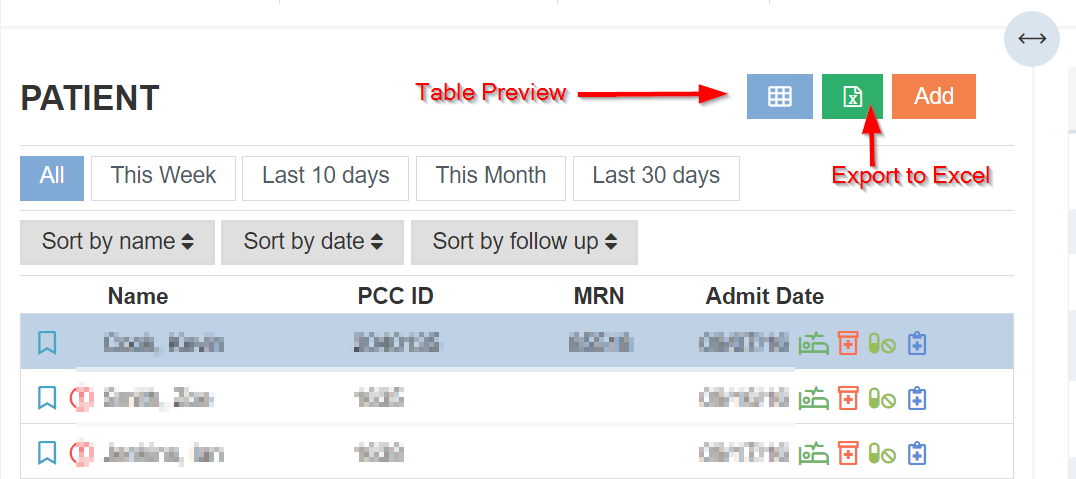
Table Preview
-
This icon will allow you to view your data set in a table.
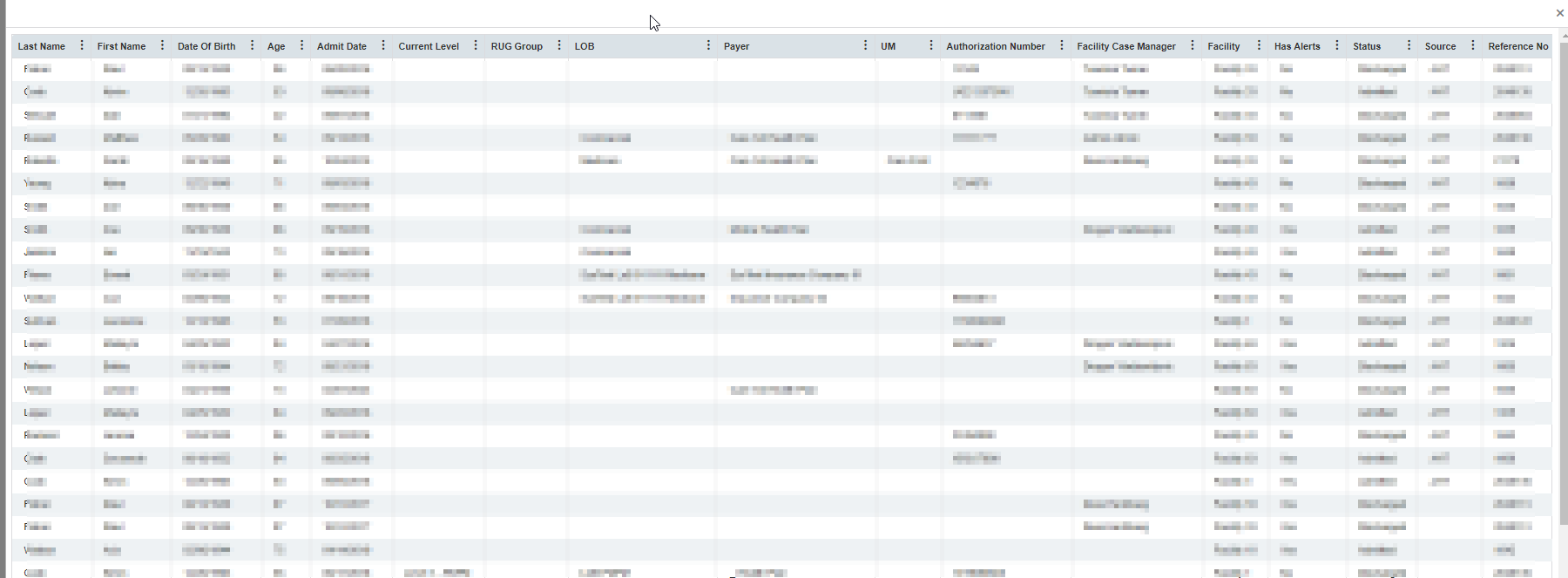
Export to Excel
-
This icon will allow you to export your data set into Excel.
Add
-
This icon will allow you to add a new patient. This button is restricted to the MCM support team. Please contact service@managedcaremaster.com for more information. Please remember not to include PHI in any service requests.