Pre-Admission
Screen Navigation
-
Navigate to the Pre-Admissions screen by selecting the following menu option:

-
Using the Status, Region, and Facilities filter will determine what patients will be displayed on the Patient list.

-
Remember to select the Refresh button (shown above) after changing your filters.
-
The Search field in the right-hand corner will allow you to search a variety of options based on the entered text.
-
The blue icon will Clear Filters.

Generate Documents
-
The Additional Documents icon to the right of the Search field produces a drop down menu including the following options:
-
Print Pre-Admission Information
-
Print Cost Out
-
Print Pre-Admission & Cost Out
-

Settings
-
The Settings icon to the right of the Search field produces a drop down menu including the following options:

Column Slider for the Patient Section
-
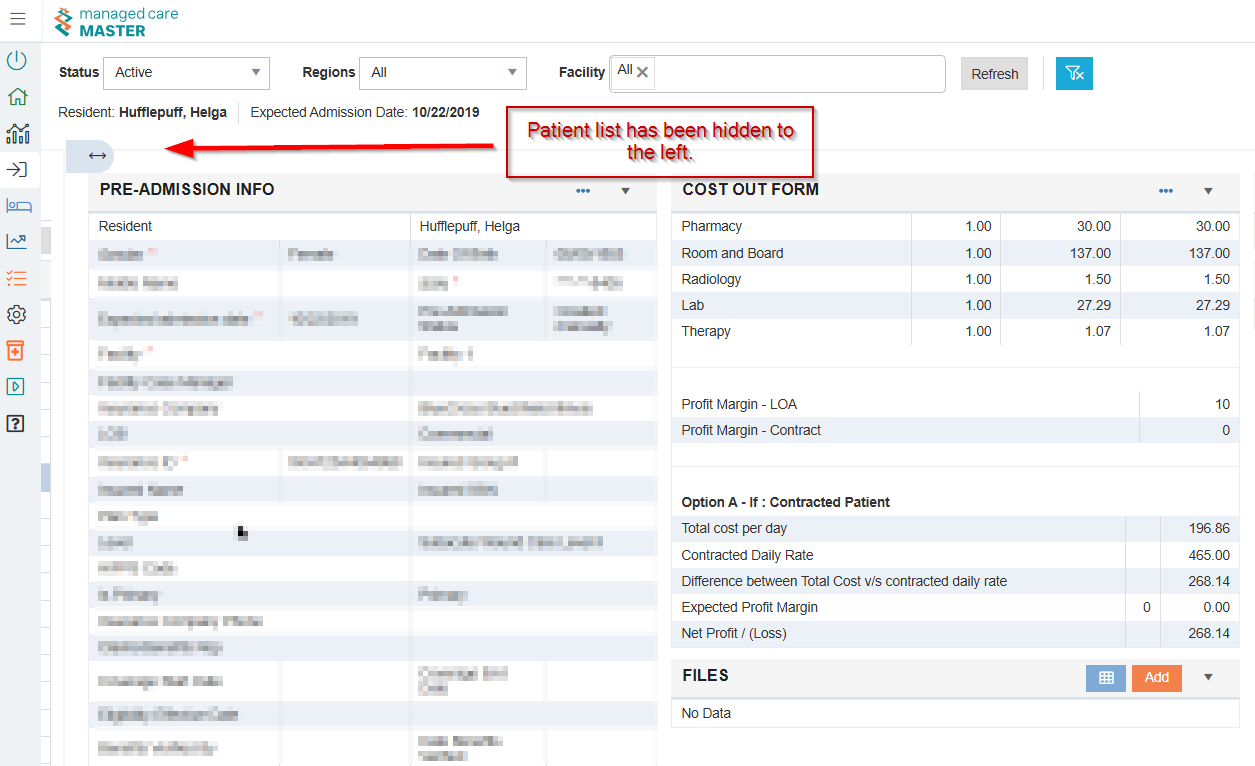
Selecting the multi-direction arrow will hide the patient list from the screen.
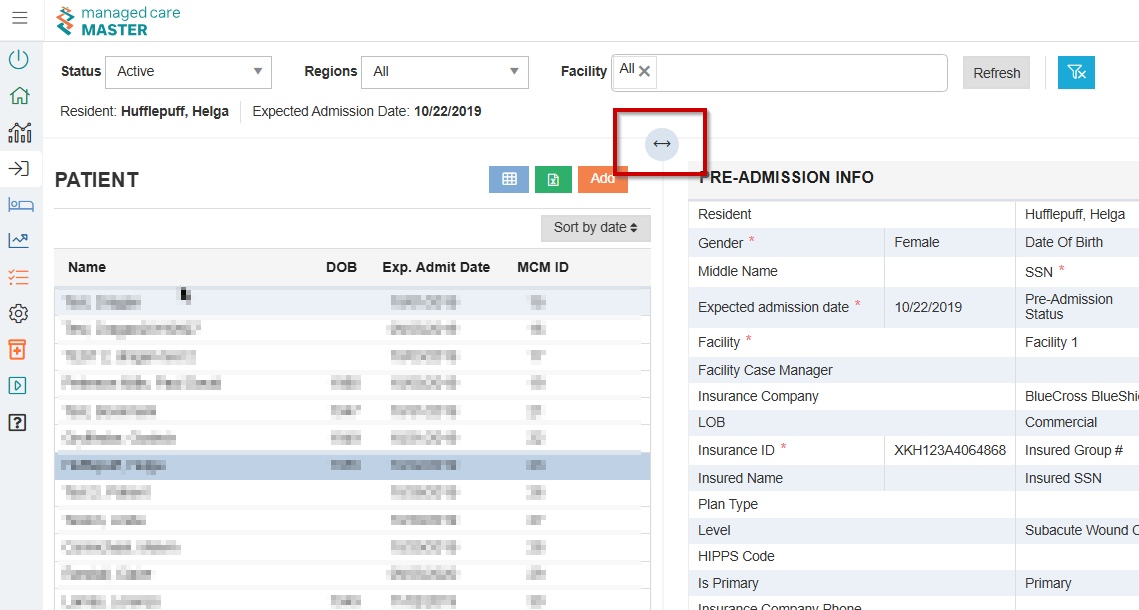
-
The image below displays the screen with the Patient list hidden.