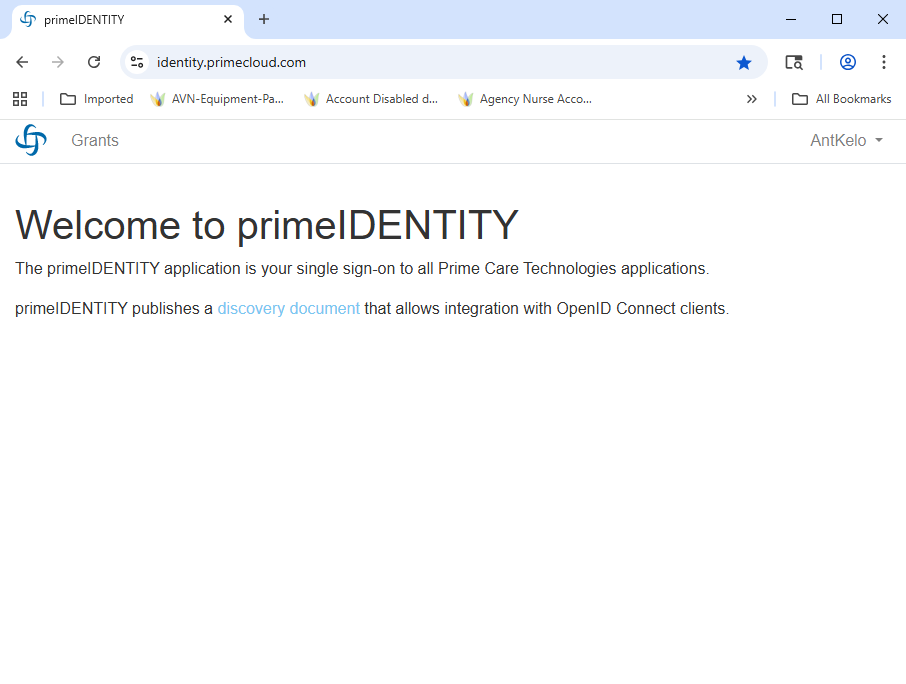
Adding multi-factor authentication (MFA) to your account helps keep it secure by requiring a second step—usually a code from your phone—when logging in. MFA setup is required the first time you log in. Follow the steps below to secure your account.
Step 1: Set Up Your Authenticator App
-
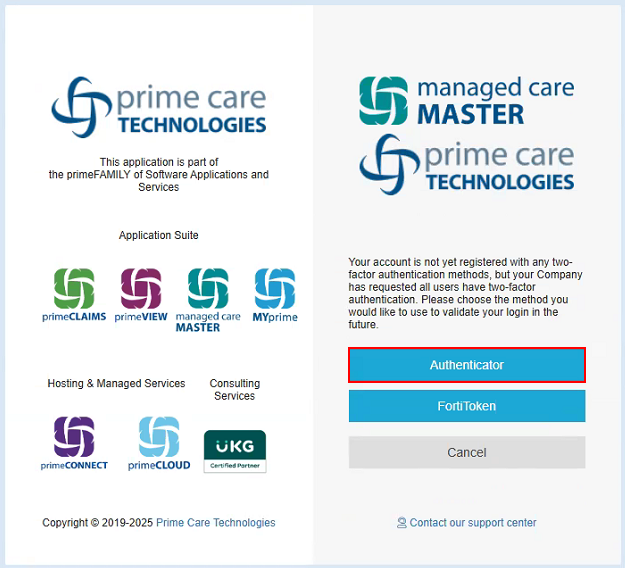
When logging in, select “Authenticator” on the screen:
-
Download a multi-factor authenticator app (if you don’t already have one). We recommend:
Microsoft Authenticator for Android or iOS
Google Authenticator for Android or iOS

-
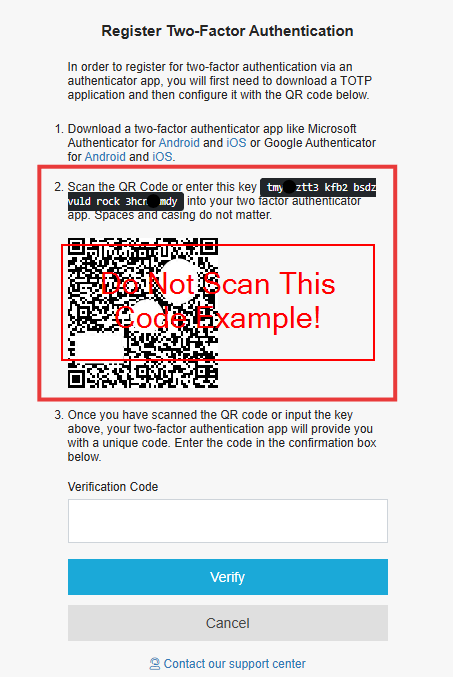
Open your authenticator app on your mobile phone, and scan the QR code displayed on screen.
On mobile device
If using Microsoft Authenticator:
a: Scan using the small QR code button on the bottom right side of the mobile device.
b: You will be lead to the scan screen, where you will scan the QR code on your computer screen, as the example below.
If using Google Authenticator:
a: Scan using the small multi-colored plus(+) symbol button on the bottom right side of the mobile device.
b: Select “Scan a QR code” button on the screen.
c: You will be lead to the scan screen, where you will scan the QR code on your computer screen, as the example below.
-
If you can’t scan the code, manually enter the setup key shown just above the QR code.
On computer screen
Step 2: Enter the Verification Code
-
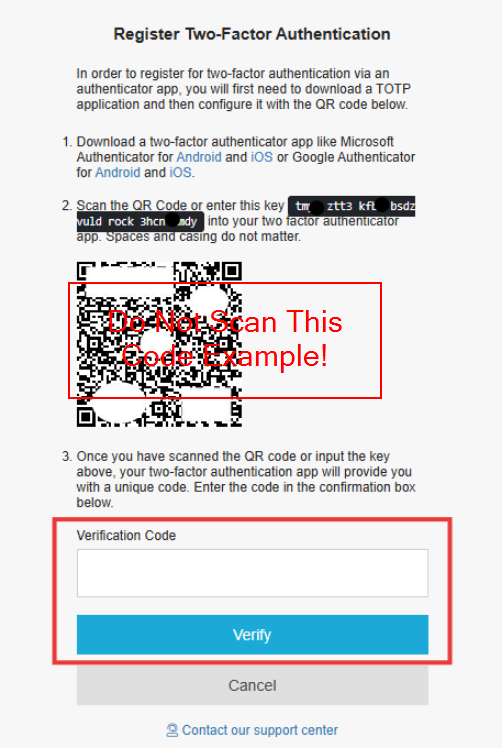
After scanning the code on your mobile phone or entering the key, your app will generate a 6-digit code.
-
On your computer screen, type that code into the Verification Code field and click Verify.
On computer screen
Step 3: Save Your Recovery Codes
-
Once your authenticator is verified, you’ll be logged out automatically.
-
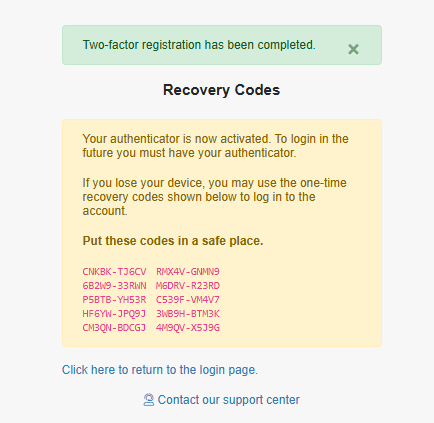
A list of Recovery codes will appear. These are one-time codes you can use if you lose access to your phone.
On computer screen
-
Save these codes in a secure place (print them, download them, or store them in a password manager).
You will not be able to view these codes again later—be sure to save them now.
Step 4: Logging into Managed Care Master
-
After saving your Recovery Codes and storing in a safe place, navigate to www.managedcaremaster.com.
-
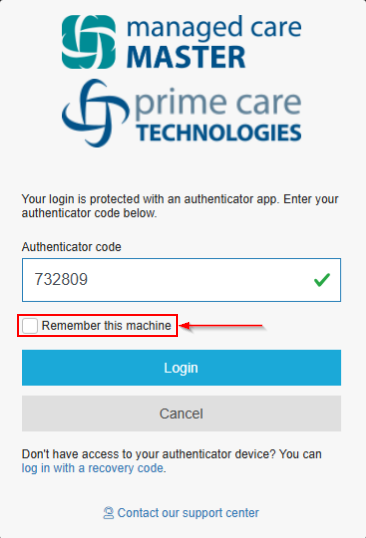
Login with your credentials as normal, and key in the One-Time-Code in your authenticator app, previously set up on your mobile phone.
On computer screen
-
You may click on “Remember this machine” which will not ask for your MFA token for your credential and for your specific device, and will re-ask you after 30 days.
📍 Here is a downloadable version of this if you need to distribute it to staff:
Setting+Up+MFA+-+Multifactor+Authentication+(Two-factor+Authentication+-+2FA).pdf
📍 Additional Information below for logging into MCM:
-
If you see the PrimeIdentity screen below after logging in with your credentials, you will need to navigate to http://www.managedcaremaster.com again and follow the login prompts to sign in.