
Screen Configuration
-
Navigate to Admissions on the left hand menu
-
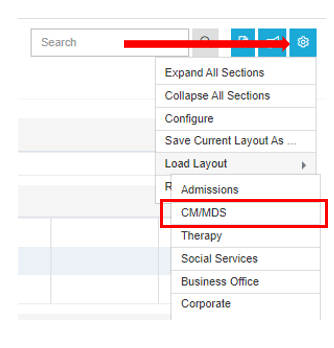
Select the Gear icon
-
Select Load Layout
-
Select your role
-
Tiles will be populated on the screen based on your role selection
-
Reviewing patients with action needed
-
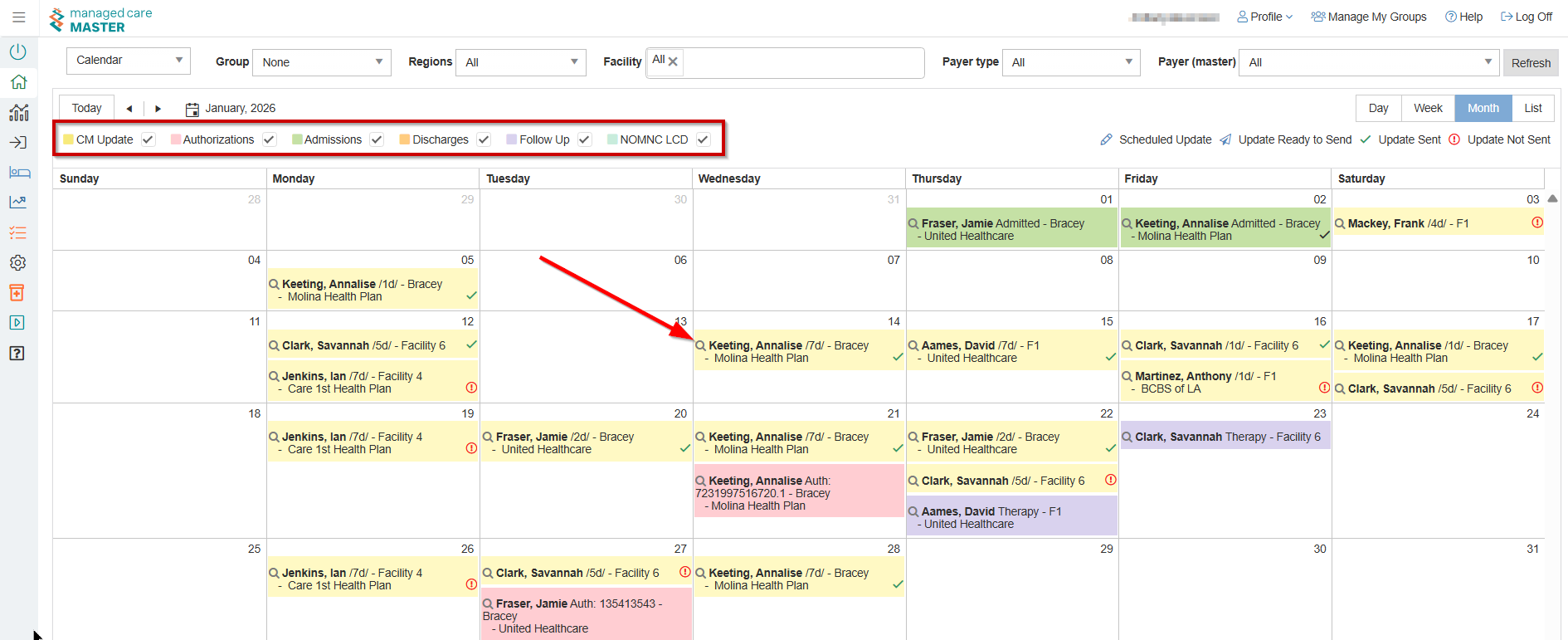
The Calendar on the home page will display updates due and expiring authorizations (select the magnifying glass to navigate directly to the patient in the Admissions area)
Updating Stay Info
-
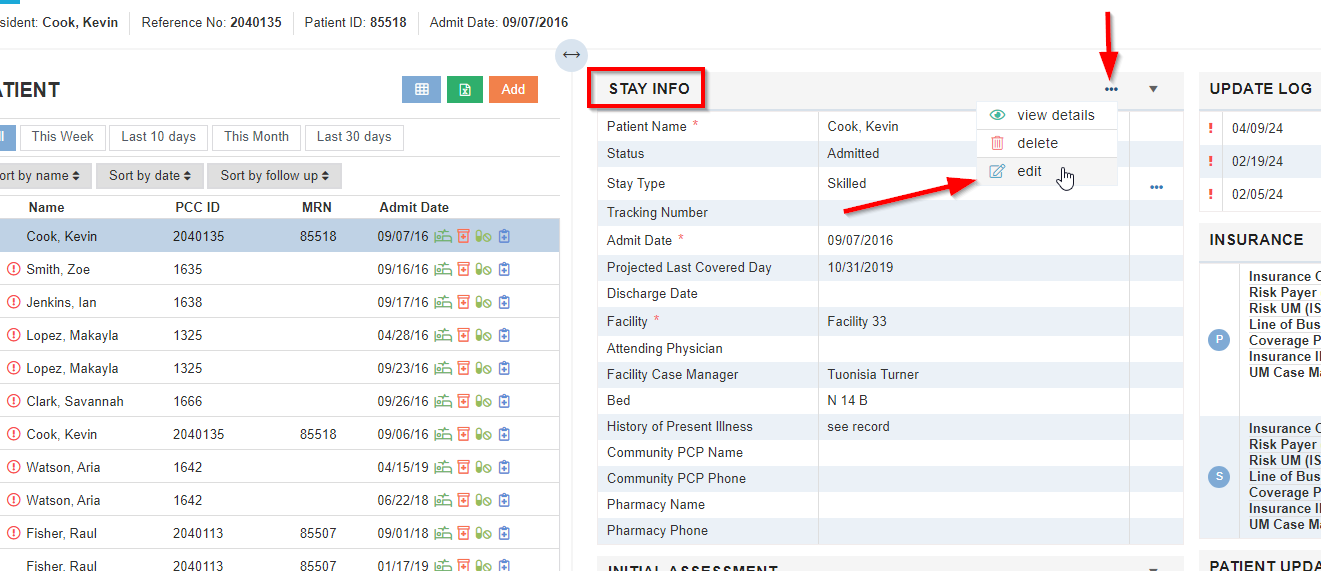
Navigate to the Stay Info tile on the Admissions screen
-
Select Edit by clicking on the ellipse.
-
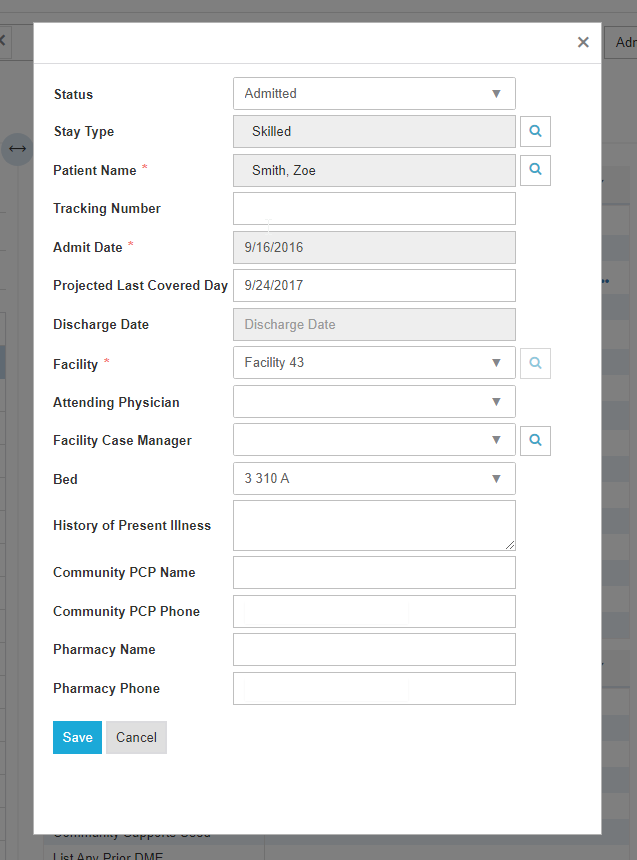
The fields below are able to be edited. The fields with a red asterisk are required.
-
Select Save once you have made edits.
Confirm Initial Authorization
-
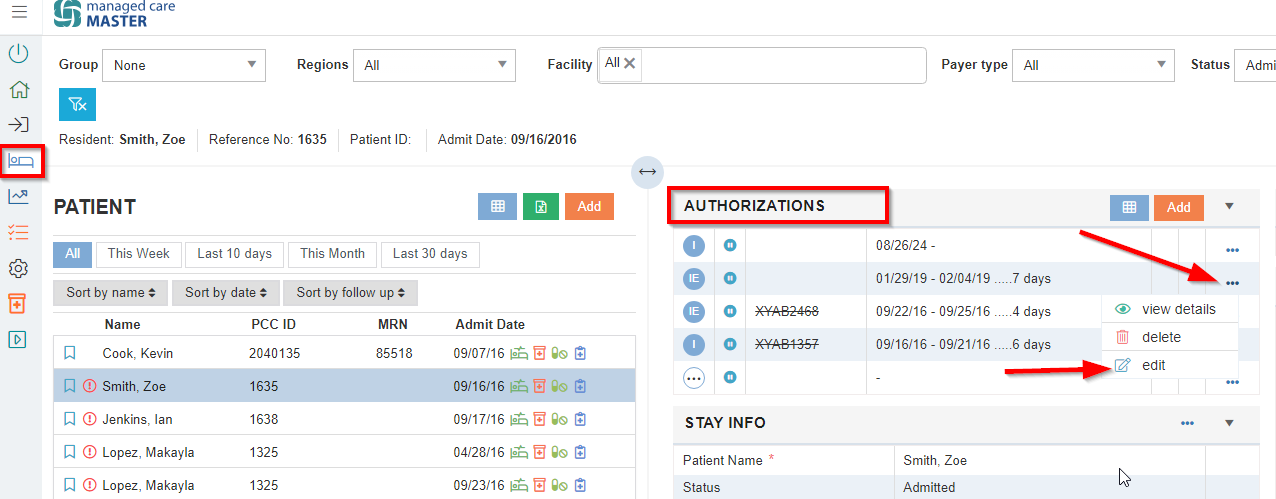
Navigate to the Authorizations tile on the Admissions screen
-
Select the ellipse to Edit
-
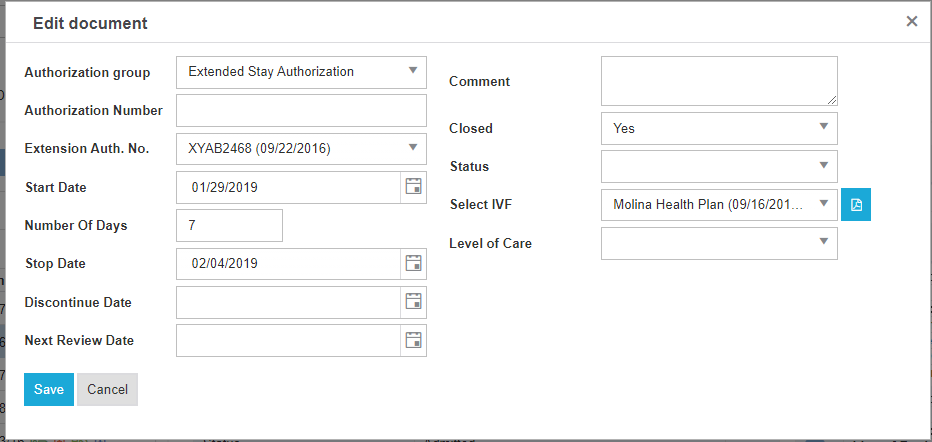
Select IVF (insurance verification form)
-
Select the Level of Care or enter HIPPS code
💡 Note: LOC must be entered in order for certain alerts to fire.
Confirm Contract Details
-
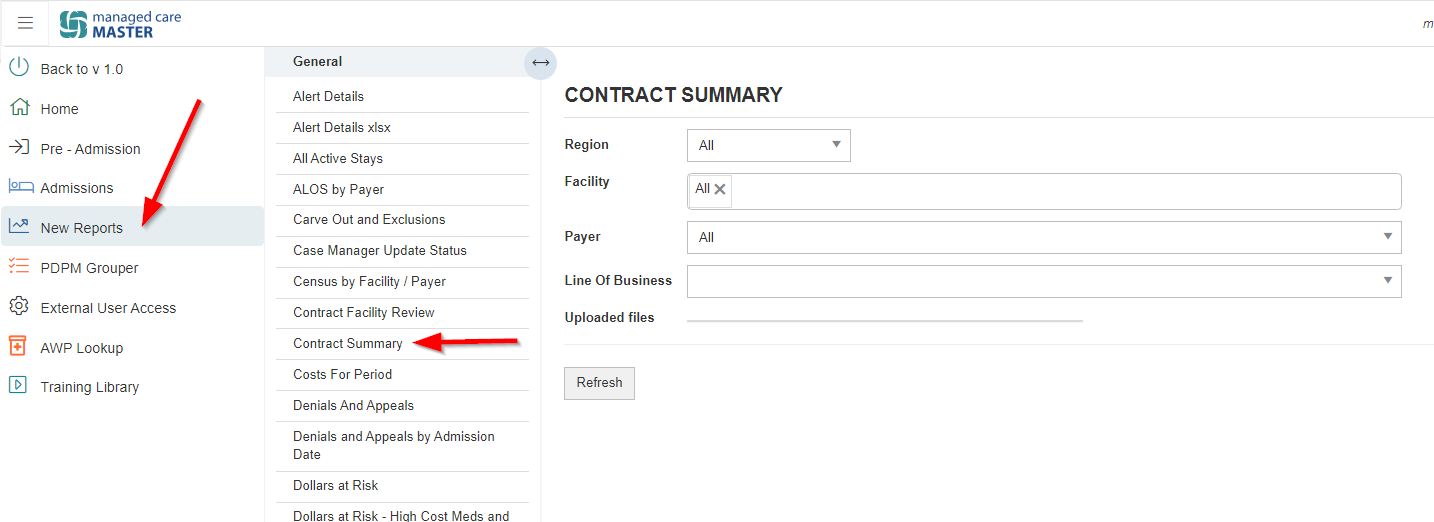
Select New Reports/Contract Summary
-
Use the field selections to filter
-
Select Refresh
-
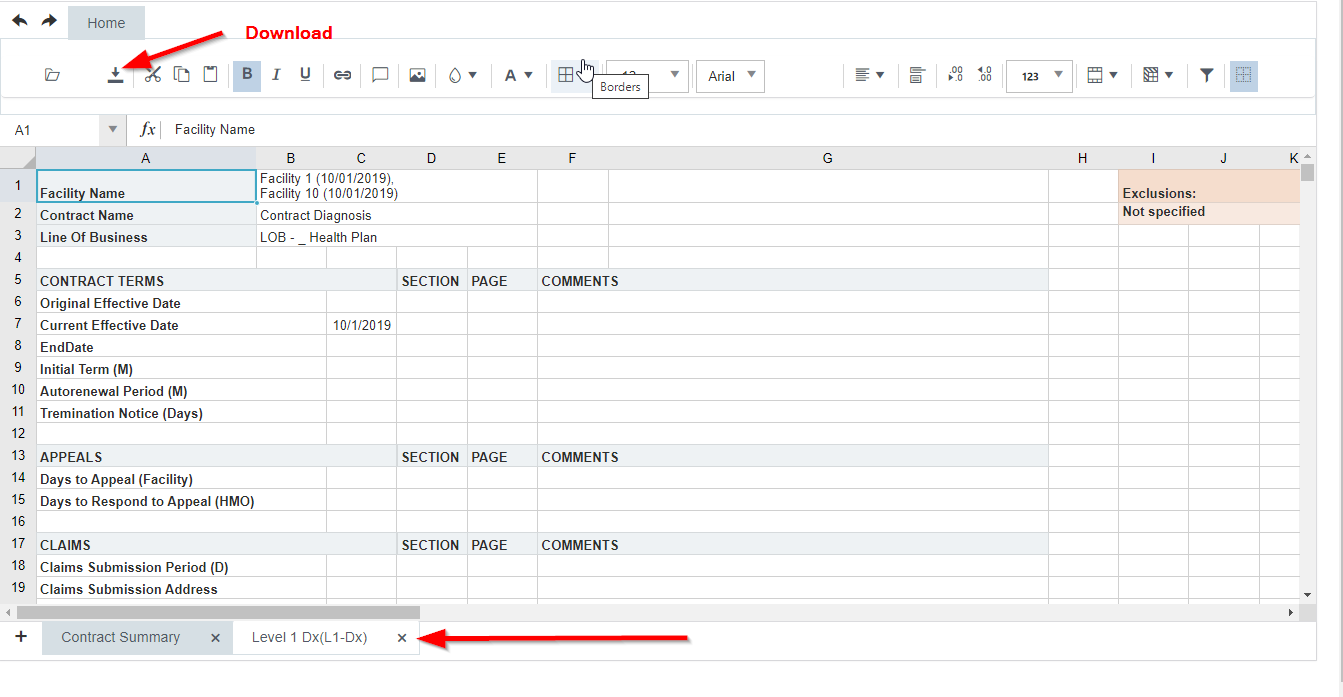
Find your summary in the sheet below
-
Navigate through the tabs as appropriate
-
This sheet is also able to be downloaded into Excel
Scheduling Concurrent Review
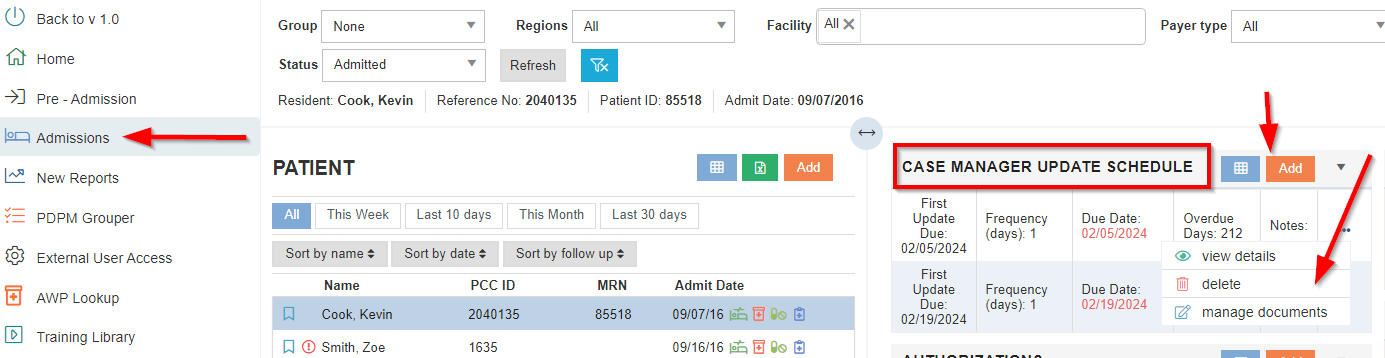
Option 1: Scheduling by frequency on the Case Manager Update Schedule tile
-
You may View Details if necessary
-
Select Add
-
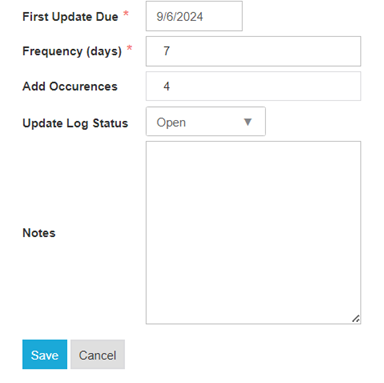
Select the Frequency - number of days between concurrent reviews
-
Select the Occurrences - number of times the concurrent review appears on the calendar
💡 The example below displays a concurrent review scheduled every 7 days for 4 weeks
Option 2: Case Manager Update from NRD (Next Review Date)
PCC (PointClickCare) Users
-
Select Admissions
-
Select the patient
-
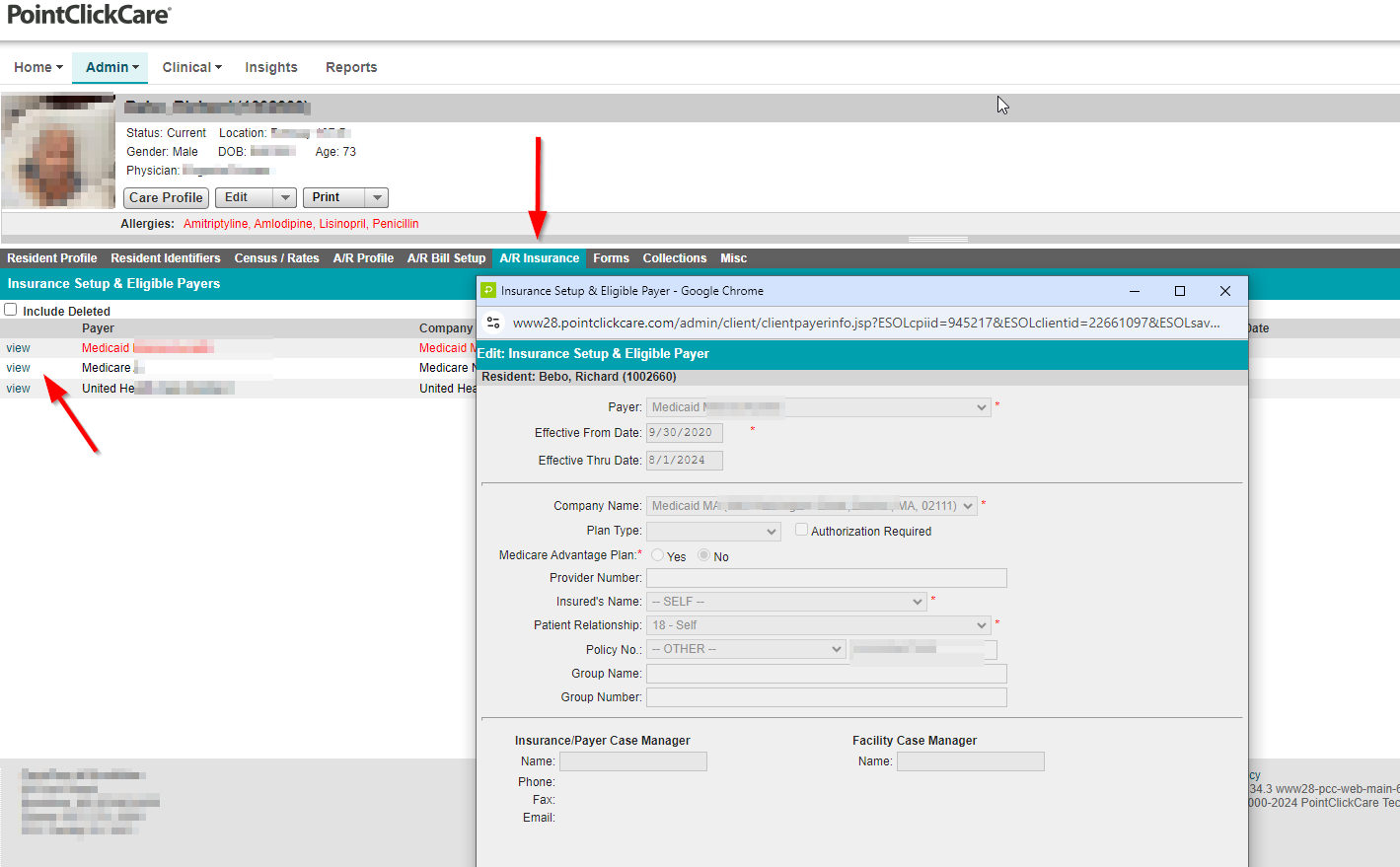
Navigate to the A/R Insurance tab
-
Enter the next review date in the appropriate authorization
-
MCM will pull over this information and automatically schedule an update on the calendar
-
Option 3: Updating Log (must already have an update scheduled by the other 2 options)
Scheduling one date at a time
-
Select Admissions in MCM
-
Select the patient
-
Select the Update Log
-
Select the Add button
-
Case Manager Update Schedule - select the original concurrent review date
-
Enter the new date and Save

Complete Case Manager Updates and Send to the Payer
-
Select Admissions
-
Select the patient
-
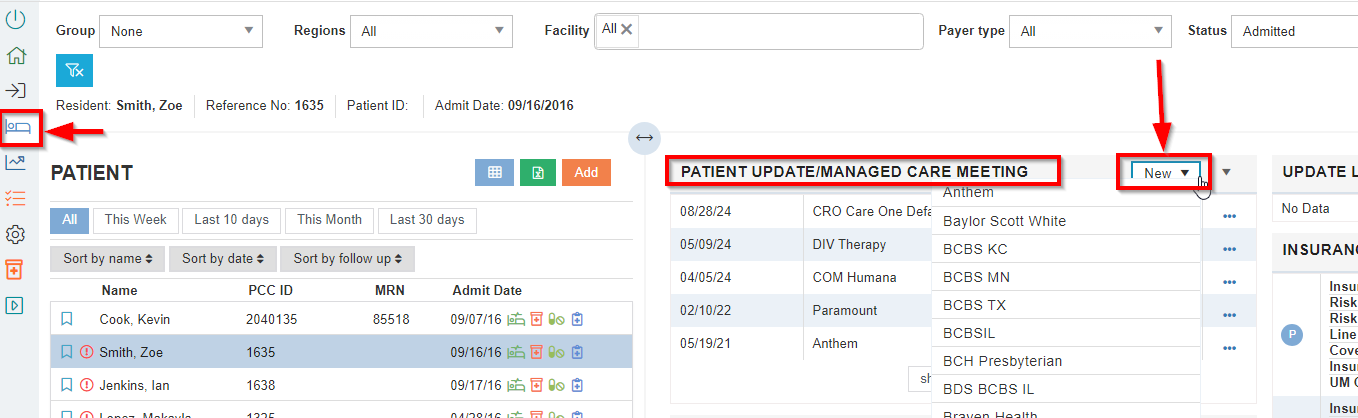
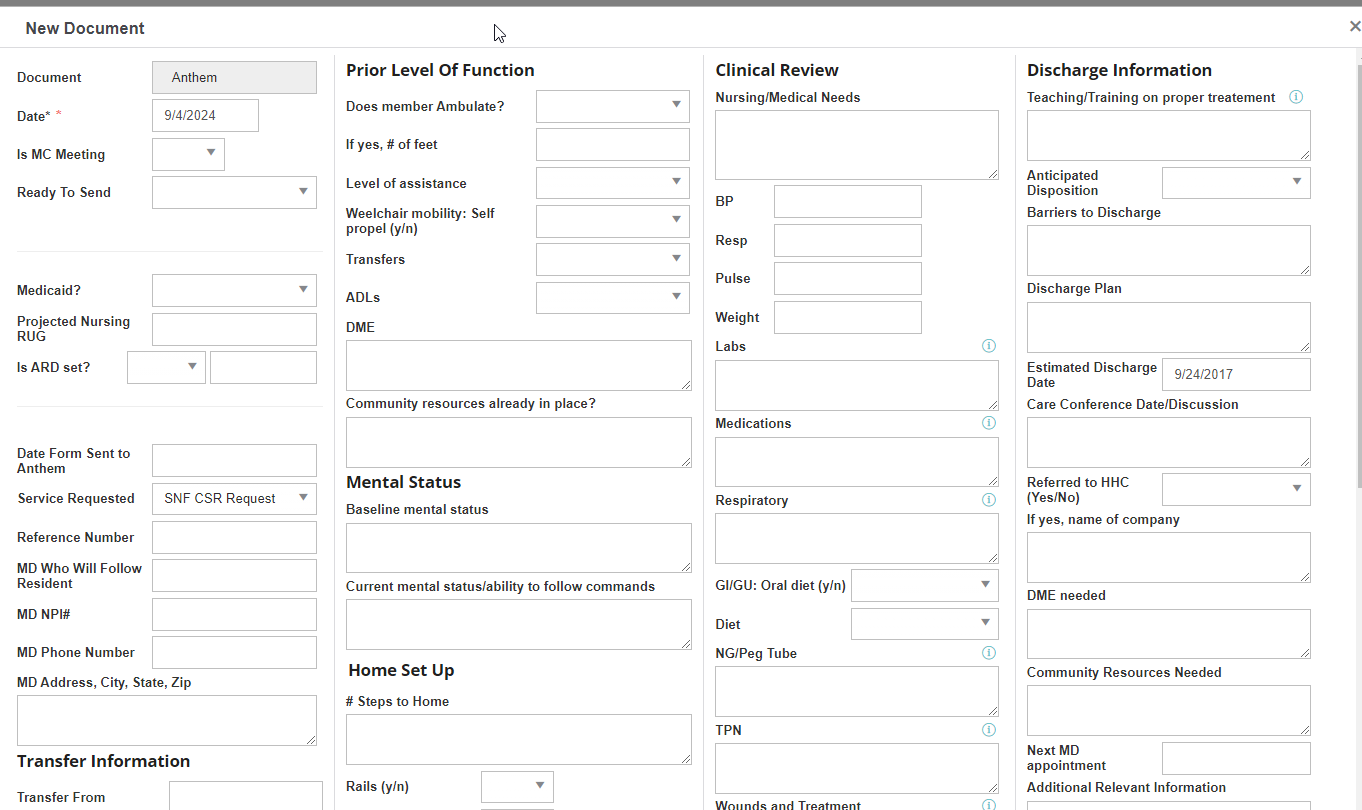
Navigate to the Patient Update/Managed Care Meeting tile
-
Select New and make your selection
-
Complete the information and Save
Complete Update Log
-
Select Admissions
-
Select the patient
-
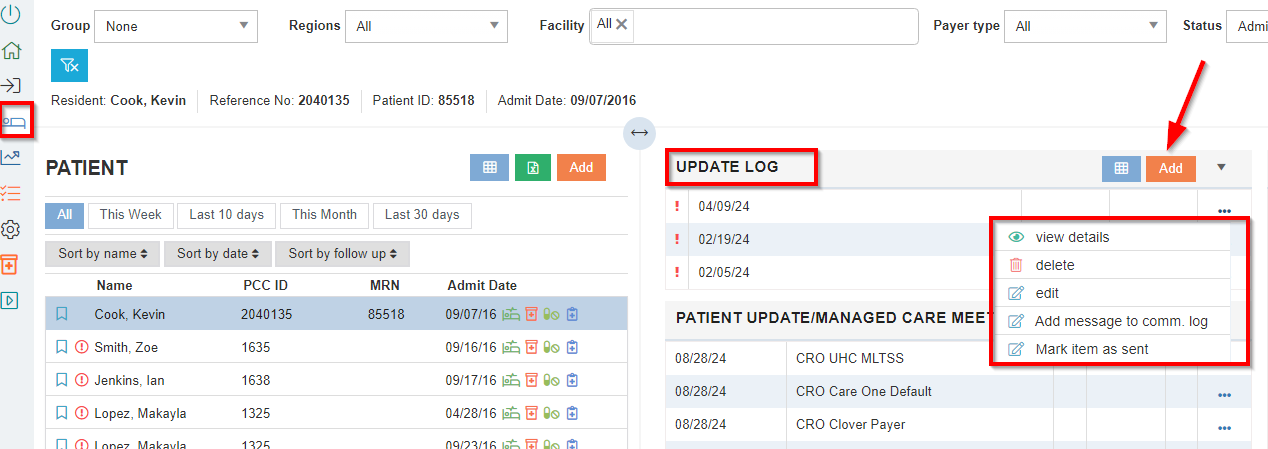
Navigate to the Update Log
-
Select the ellipses
-
Add message and/or Mark item as sent
-
This action will auto-update the Calendar screen
-
Status will change from blue (scheduled) or red (past due/not sent) to green (done/sent).
-
-
Add Extended or Special Authorizations
Upon approval from payer, add Extended or special Authorizations (i.e. carve-outs, DME, transportation, etc.) and update changes in Level of Care/HIPPS if applicable
-
Select Admissions
-
Select the patient
-
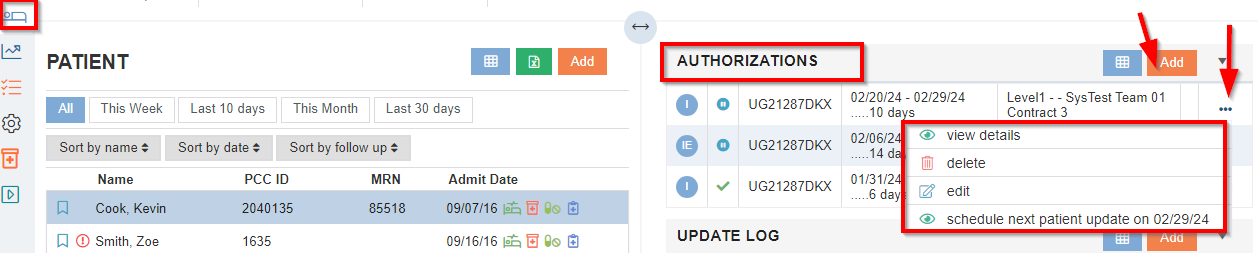
Navigate to the Authorizations tile
-
Select the ellipsis to to revise current authorization
-
Select Edit to change the Level/HIPPS
-
As a reminder, in Authorizations, the Stop Date box helps populate the data shown on the Expiring Authorizations calendar/list. If this is blank, nothing will show. After entering the Start Date, you can enter the Number of Days and it will auto-populate the Stop Date. You may also enter the Stop Date and the Number of Days will auto-populate.
-
Note: you may configure your Admission screen by dragging/dropping the tiles