This guide will assist with understanding how to locate alerts for patients within Managed Care Master (MCM) as well as within your alert list emails. This guide will also address resolving your alerts, and generating reports for alerts for each patient within MCM.
Alerts from the Admissions Menu
-
Navigate to the Admissions screen
-
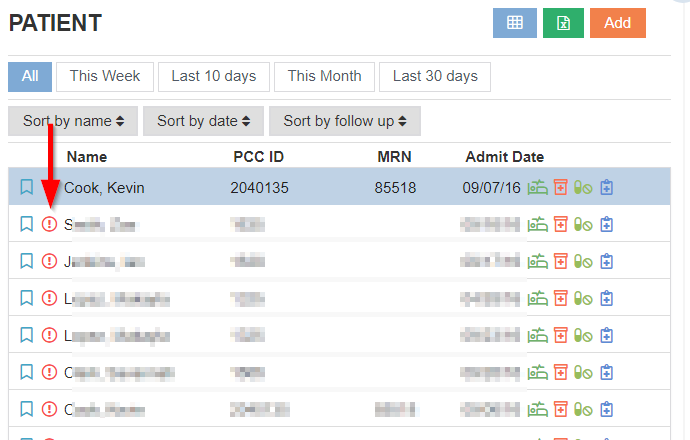
The red exclamation signifies an alert message for that patient
-
Select the red exclamation point
-
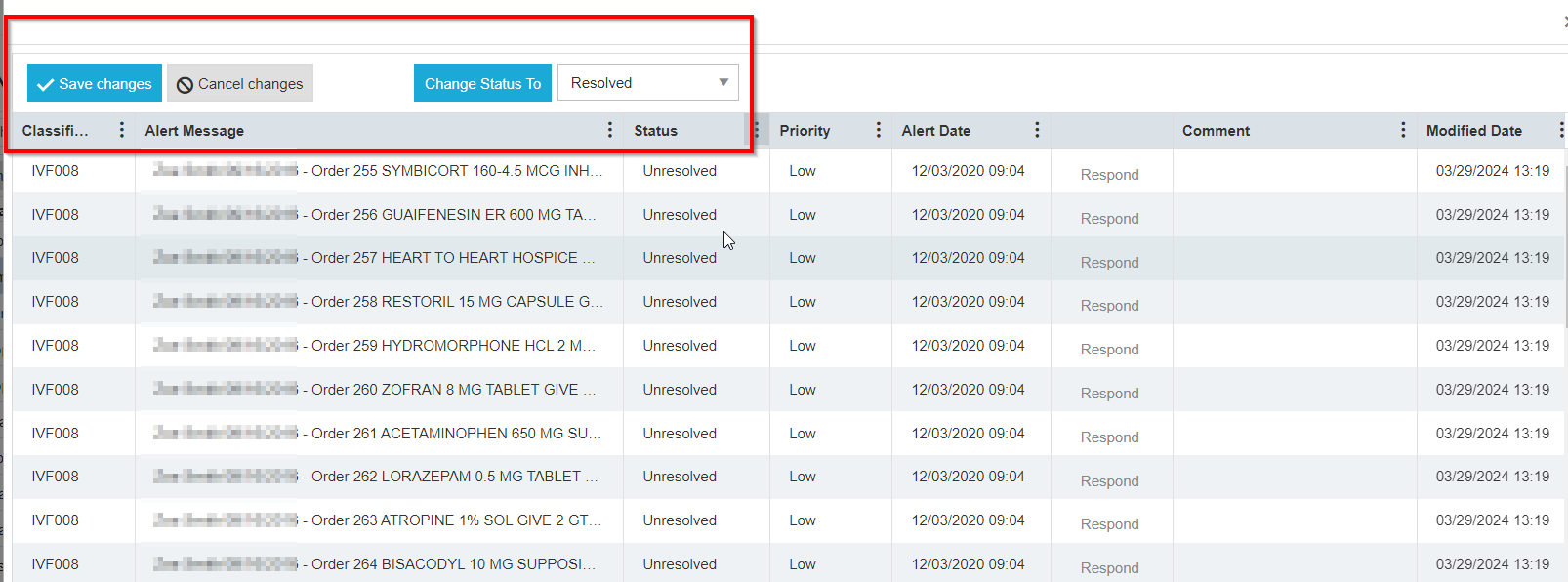
The alerts for the selected patient will be displayed
-
Please note the available columns
Resolving Alerts
Alert Resolution in MCM
-
Review the unresolved alerts by selecting Unresolved in the Status drop down menu
-
The status may be changed to Resolved or Ignore as applicable
-
Ignoring - there is nothing to be done at this time regarding the alert
-
Resolving - action has been taken to resolve the alert (e.g. entered the level of care, discussed therapy minutes with the DOR, requested a carve out, etc.)
-

Alert Assistance
-
If you require more information regarding the alert, please select Respond

-
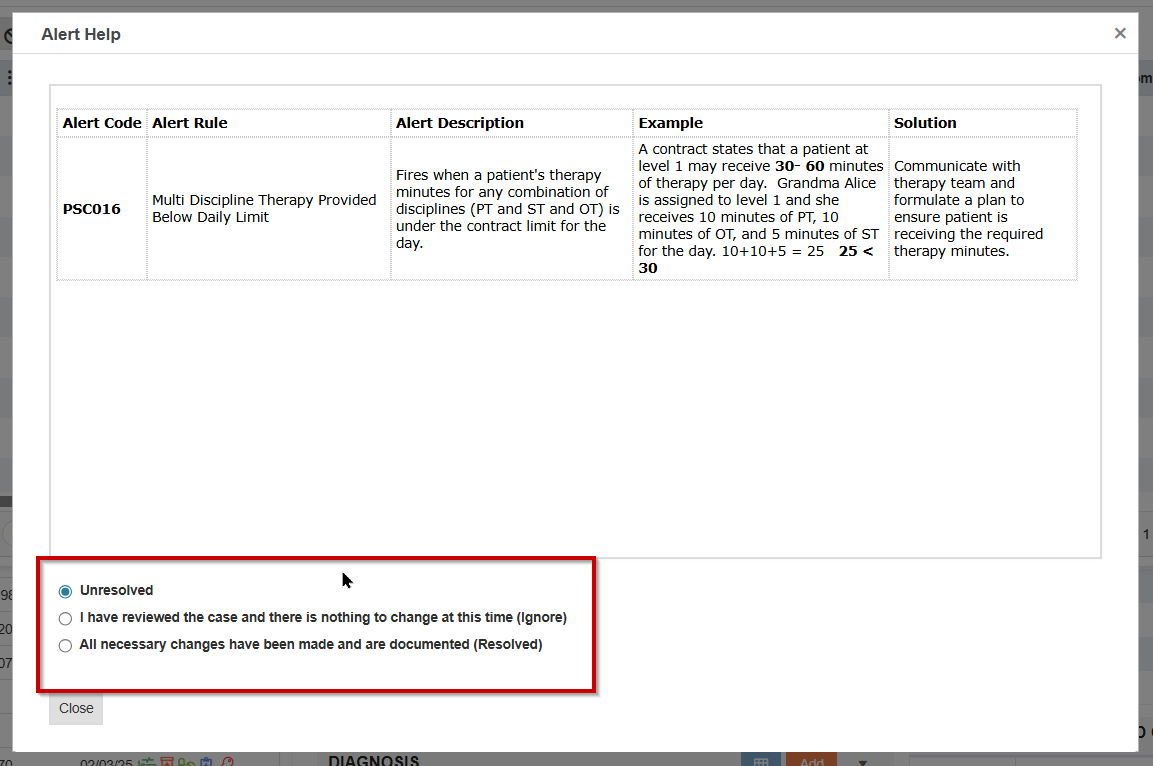
A window will be displayed with more information
-
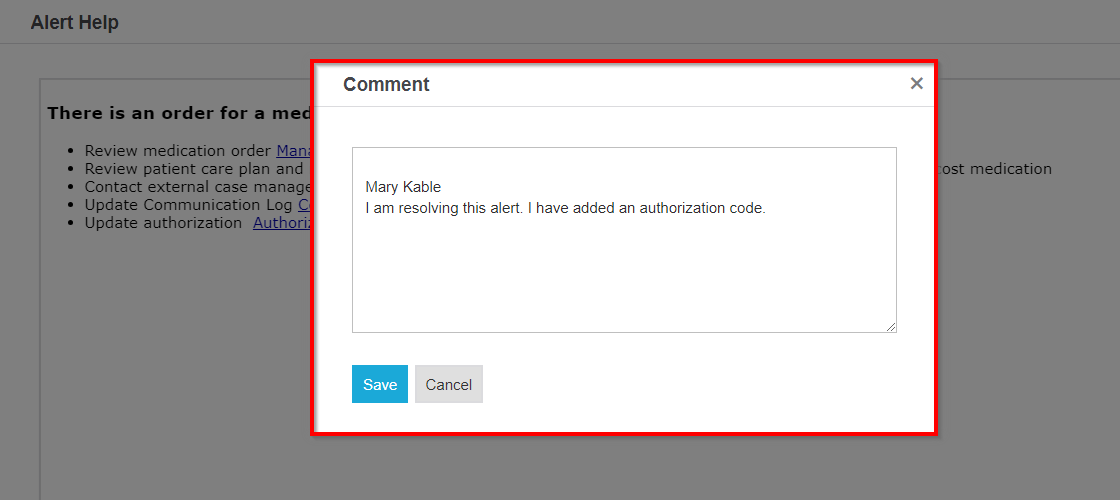
Navigate to the bottom of the window to note action taken regarding the alert
-
Select the appropriate radio button
💡 Note: MCM allows the option for facilities to force a comment to be entered to explain what action was taken when resolving an alert. Please reach out to service@managedcaremaster.com if you wish to enable this feature.
-
Once the comment has been saved, the alert will be resolved/ignored depending on the selection
-
The alert will no longer appear on the alert list for the patient
Auto-Resolving Alerts
-
Select alerts are designed to “auto-resolve” due to certain parameters.
-
The Authorization alert (RES003) will resolve when MCM identifies the authorization from PCC has imported into MCM.
-
The Level of Care/LOC alert (IVF009) will resolve when MCM identifies the LOC has been assigned to the authorization for the patient.
-
All auto-resolve alerts will resolve the following morning.
-
Additional Alert Resources
Resolving Alerts from the Alert List Email
-
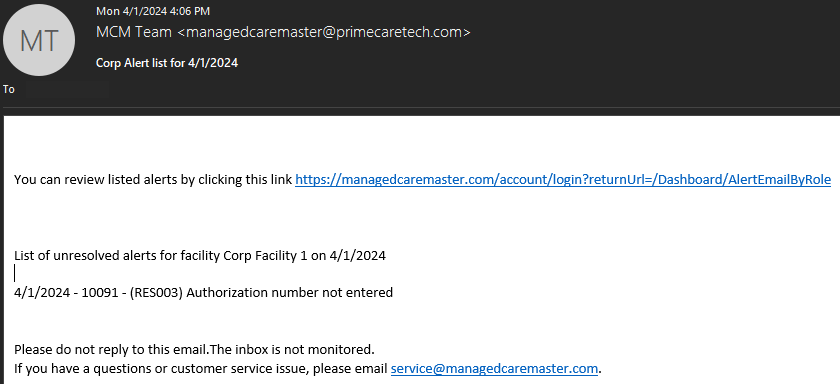
MCM allows for alerts to be sent to an email inbox (PHI is protected).
-
The email will contain a direct link to the patient alert
-
There may be multiple alerts codes for one patient
-
A corporate user will be notified of alerts for multiple facilities
Using the Alert Details report
-
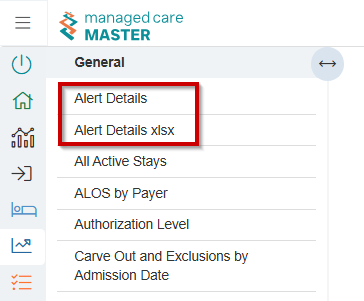
Navigate to the New Reports menu Reports and PDPM Grouper
-
Select the alert report you wish to generate
-
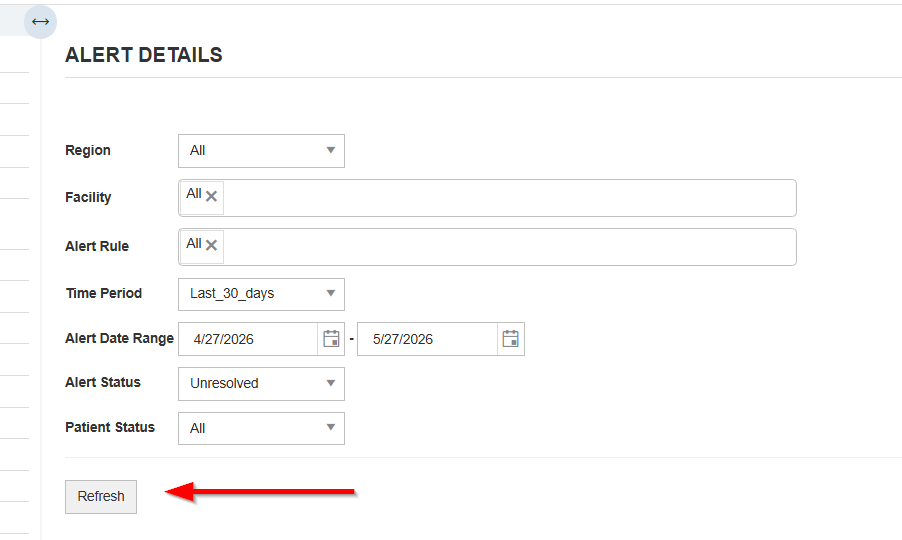
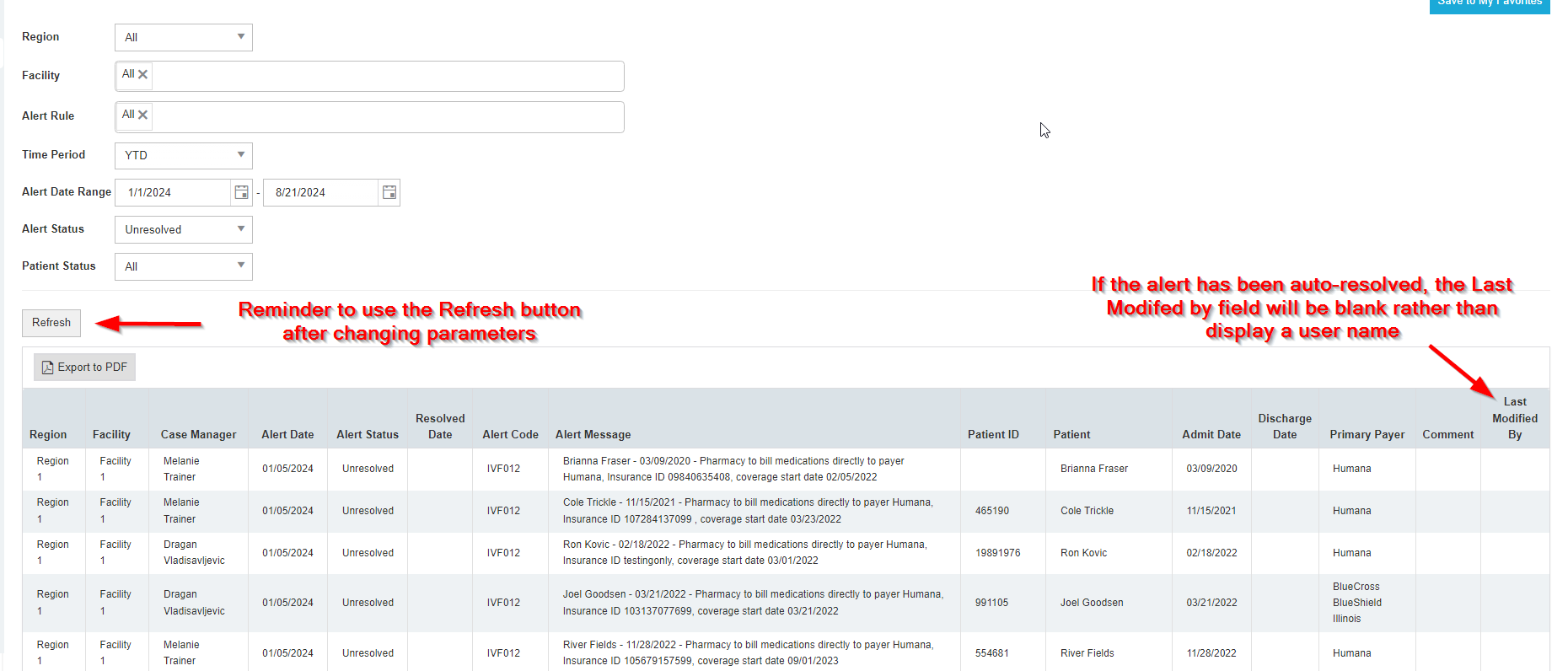
Select the parameters
-
Select Refresh to generate the report
-
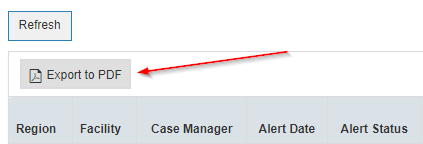
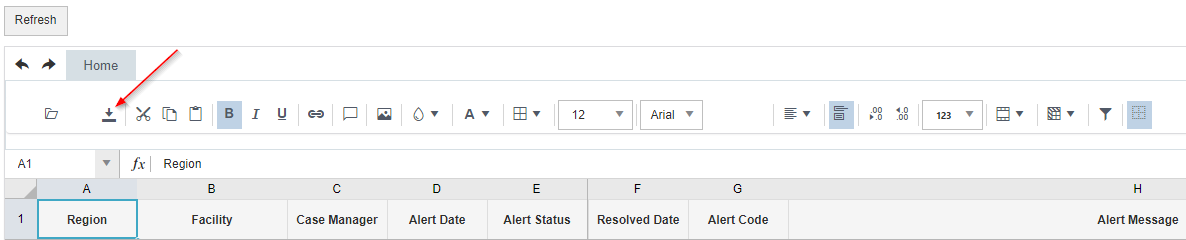
The report may be generated as a PDF or Excel file
Alert Details example:
Customer Service
-
MCM Support Number: 855-424-3914
-
MCM Support Email: service@managedcaremaster.com
-
MCM University: MCM University
-
This information may also be referenced in MCM on the top right corner Help icon