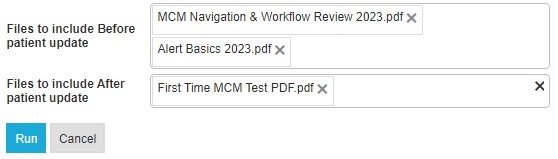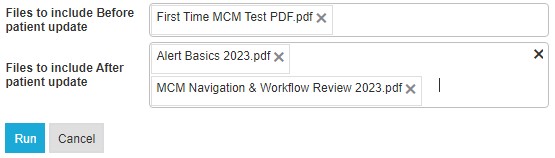
This guide will display how to update and combine additional forms or documents in the Patient Update / Managed Care Meeting tile. This allows for payor packets to include additional information from what is currently in MCM.
Files Tile - Add Document
-
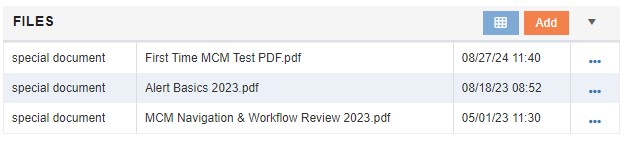
In the Admissions screen, find the Files tile and select the Add button. On the pop-up window, select the Document Type. Choose your files and upload the files from your computer. They will appear on the Files tile list.
Setting Parameters
-
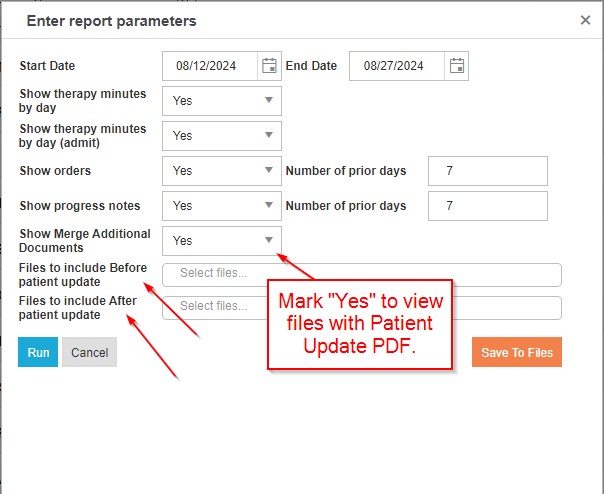
In the Admissions screen, find the Patient Update / Managed Care Meeting tile. On the right hand side of the form you wish to add the new documents to, select the ellipsis and select the last entry which brings up Enter Report Parameters.
-
Towards the bottom you can add your new documents in the “Files to include…” section. There is an option to have the documents precede or follow the form.
-
Select the following to View, Print, or Save the Patient Update with your selections.
Examples: