
This guide will navigate through the therapy/clinical workflow.
Calendar Screen Navigation can be found here: Home (Calendar Screen)
Therapy/Clinical Workflow
-
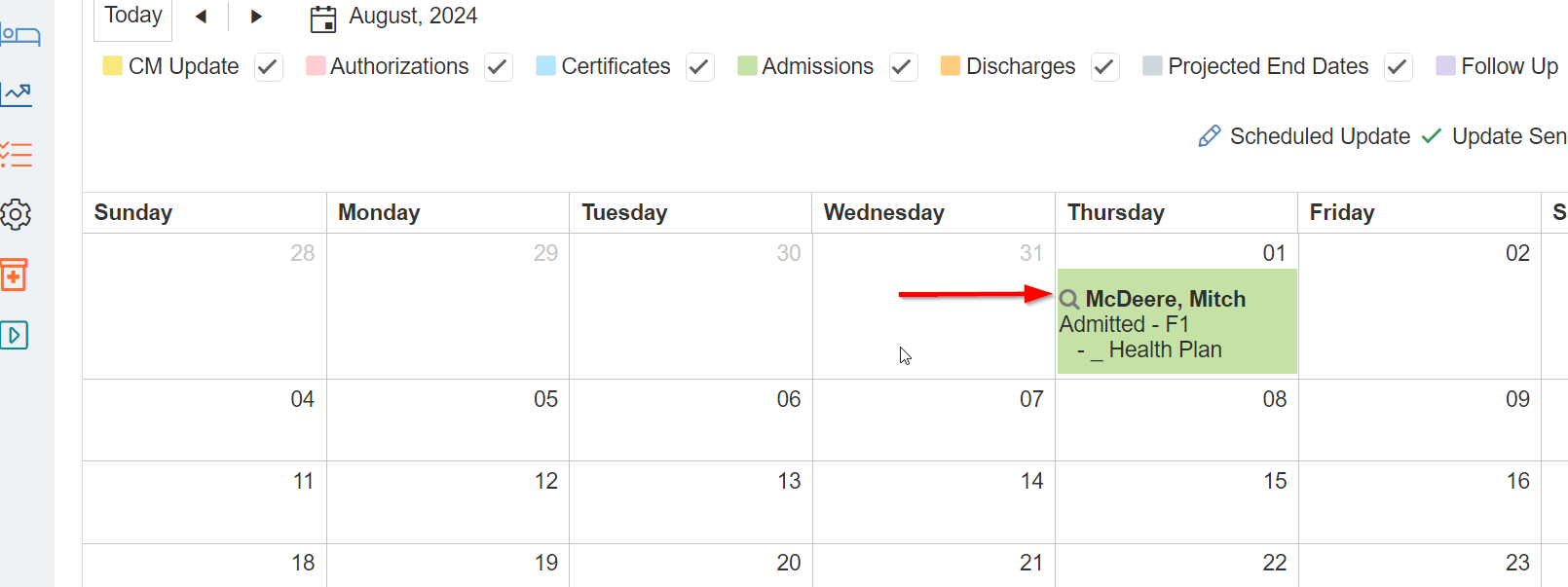
Review the Calendar for updates that are due
-
Select the Magnifying Glass (shortcut to the patient’s admission record)
Patient Update (Concurrent Review)
-
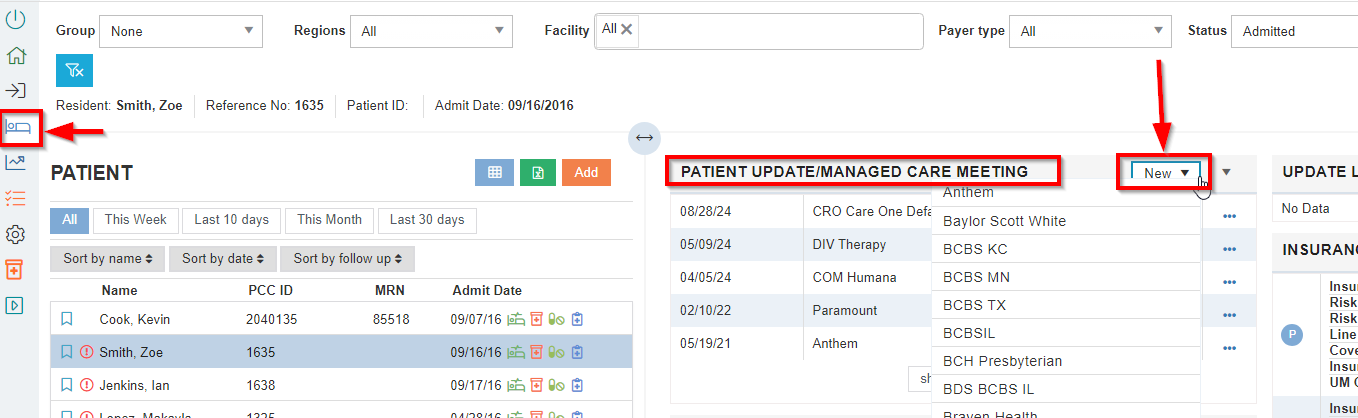
Navigate to the Patient Update/Managed Care Meeting tile
-
Select New and choose the correct payer form
-
Note: If your team has already started the form, click the ellipsis next to the form name and edit to add your information
-
-
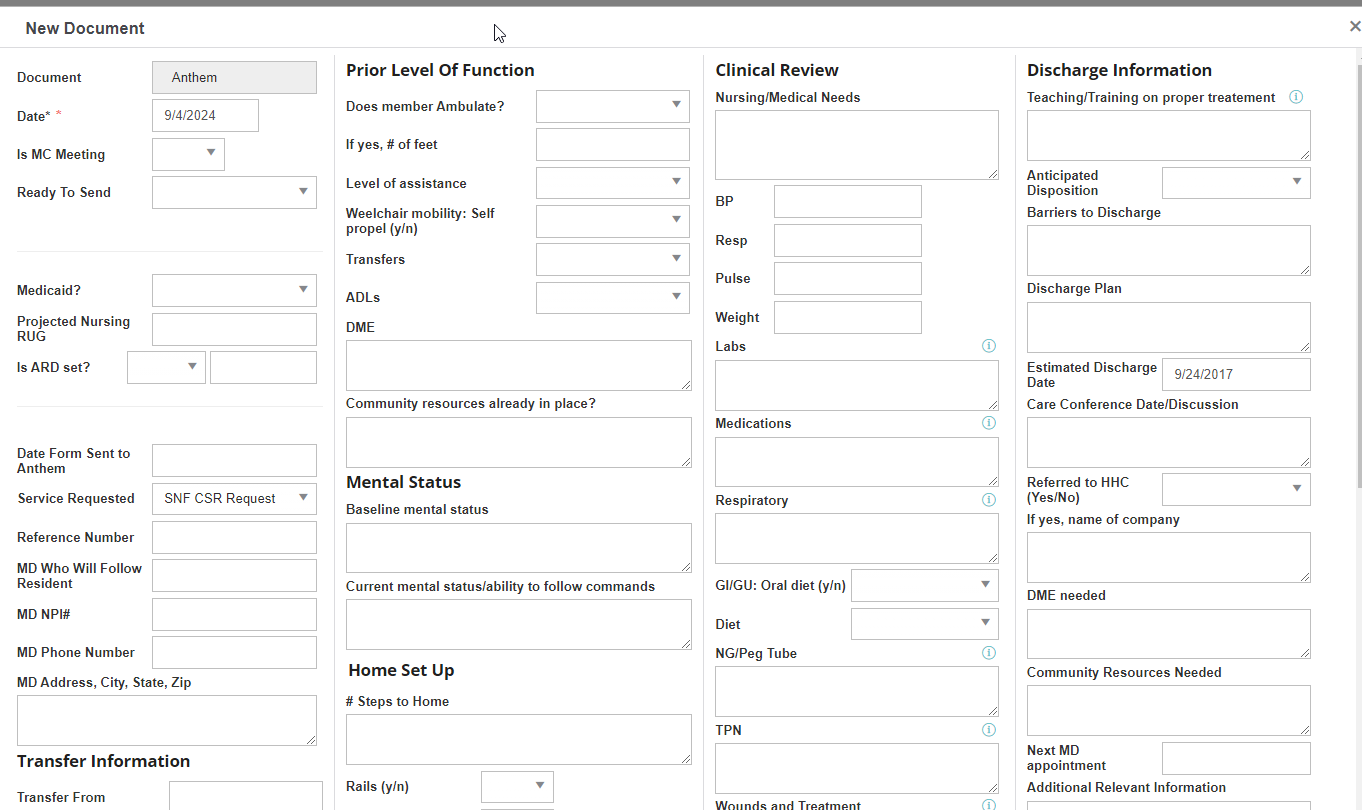
Complete the applicable portion of patient update on the Patient Update/Managed Care Meeting tile.
-
Note: When working on the next update, the data from the previous update will automatically populate; you only need to modify the areas that have changed.
-
-
Complete the information and Save
Update Log
-
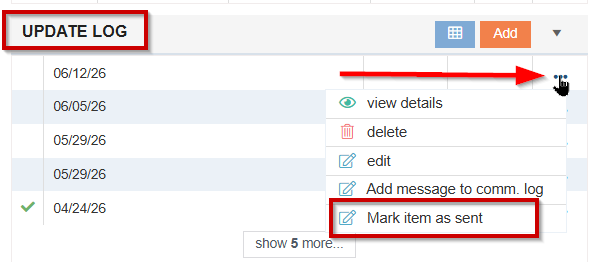
If you are responsible for marking a form as sent, navigate to the Update Log
-
Next to the correct date, click the ellipsis
-
Select Mark item as sent from the dropdown
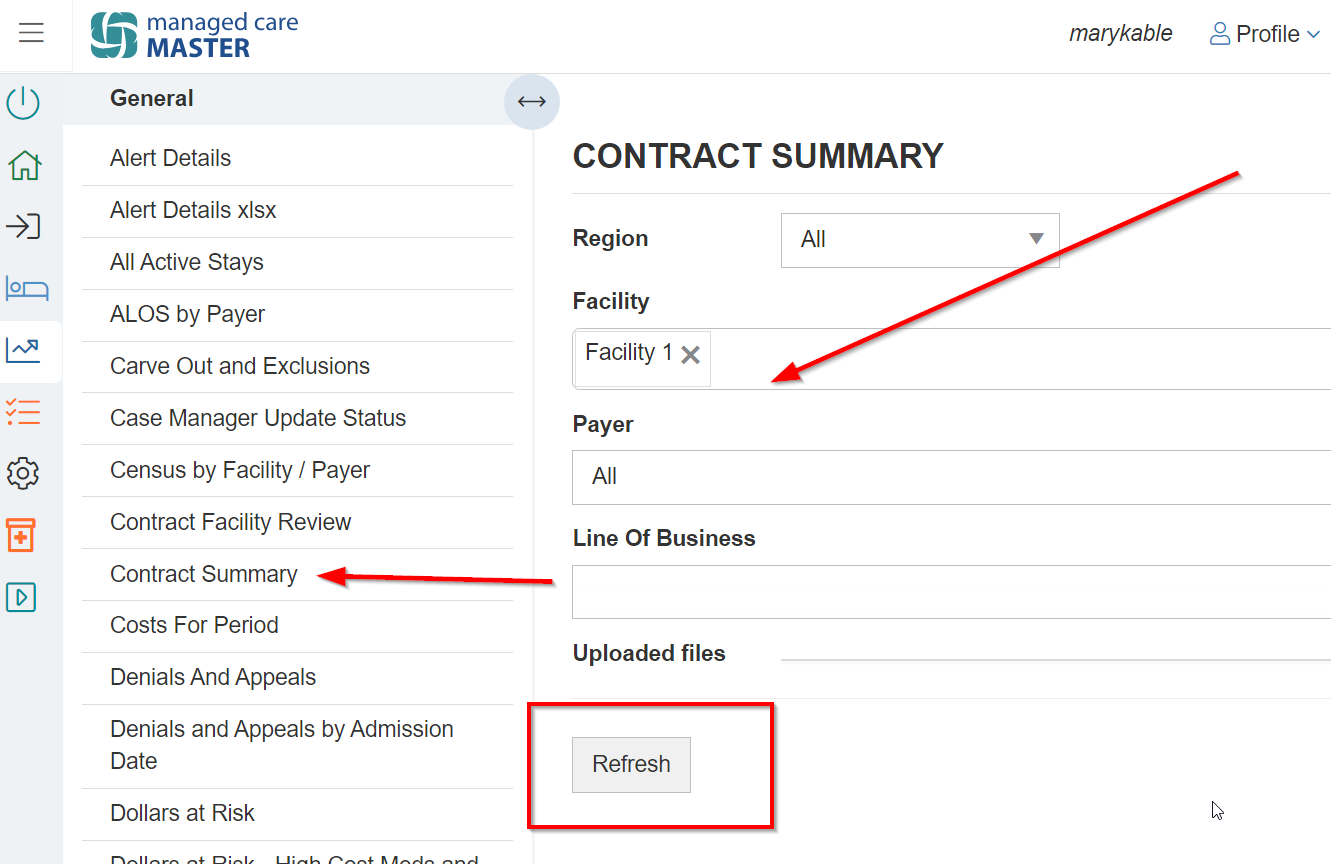
Review Contract Summary
-
Select Contract Summary to confirm level of care (allowable services and limitations, such as therapy, exclusions, and comments)
-
Apply the desired filters
Alert Resolution
-
Please refer to this guide to resolve applicable alerts: Reviewing & Resolving Alerts
Contract Requirements for Therapy
-
Please refer to the link: Contract Requirements for Therapy