Tutorial
Screen Navigation
-
Navigate to the Pre-Admissions screen by selecting the following menu option:

-
Using the Status, Region, and/or Facilities filters will determine what patients will be displayed on the Patient list.
-
Status
-
Active - Referrals that are currently being worked
-
Converted - Referrals that have been admitted
-
Closed - Referrals that did not admit
-
All - All referrals (active, converted, and closed)
-
-
Region - Region of the SNF (Skilled Nursing Facility) you would like to view. Only available if Regions have been set up.
-
Facilities - Select any combination of individual facilities or All
-
-

Remember to select the Refresh button (shown above) after changing your filters.
-
The Search field in the right-hand corner will allow you to search a variety of fields based on the entered text such as name and MRN.
-
The blue icon will Clear Filters.
Top Right Icons
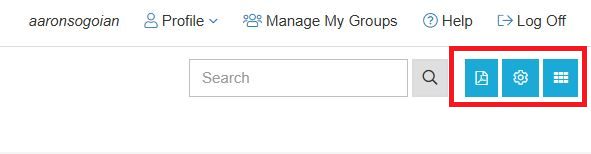
Generate Documents
-
The Additional Documents icon to the right of the Search field produces a drop down menu including the following options:
-
Print Pre-Admission Information
-
Print Cost Out
-
Print Pre-Admission & Cost Out
-
Settings
-
The Settings icon to the right of the Search field produces a drop down menu including the following options:
-
PDPM Grouper
-
HIPPS Calculations
-
Print PDPM Details
-
Layout
-
The Layout icon to the right of the field produces a drop down menu including the following options:
-
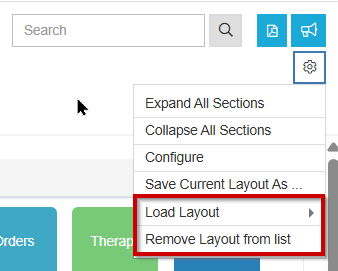
Expand All Selections - opens all tiles on the screen
-
Collapse All Selections - closes all tiles on the screen
-
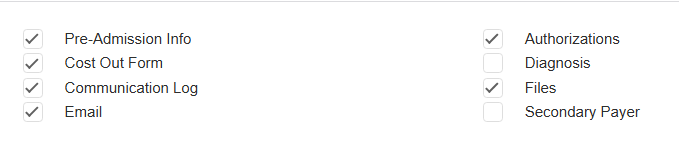
Configure - select which tiles display on the screen
-
-
Save Current Layout As - allows users to save the tiles on the in a specific configuration
-
Load Layout - select a role to configure the screen to that user type
-
Remove Layout from List - remove a specific layout from Load Layout option
-
Patient List
-
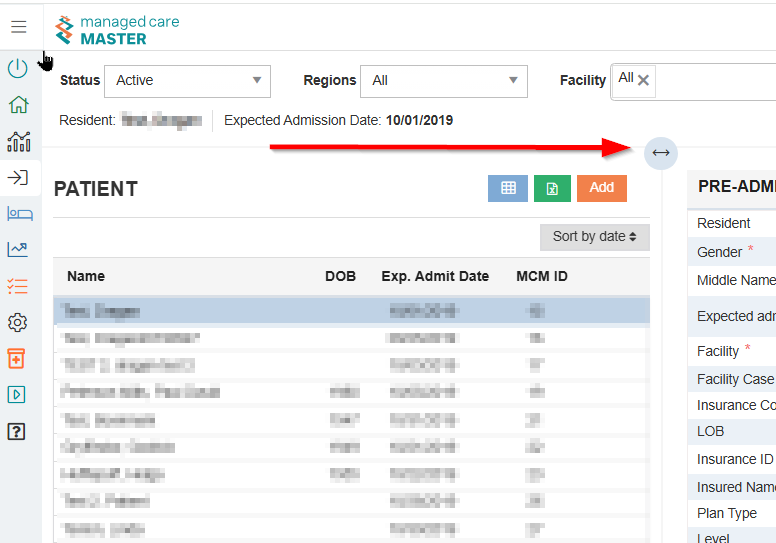
Patient List is displayed in the order the referral was entered and shows the referral’s Name, Date of Birth (DOB), Expected Admit Date, and MCM ID.
-
Users can also Sort by Date ascending or descending.
-
Users can search for a specific referral using the Search bar at the top right of the screen.
-
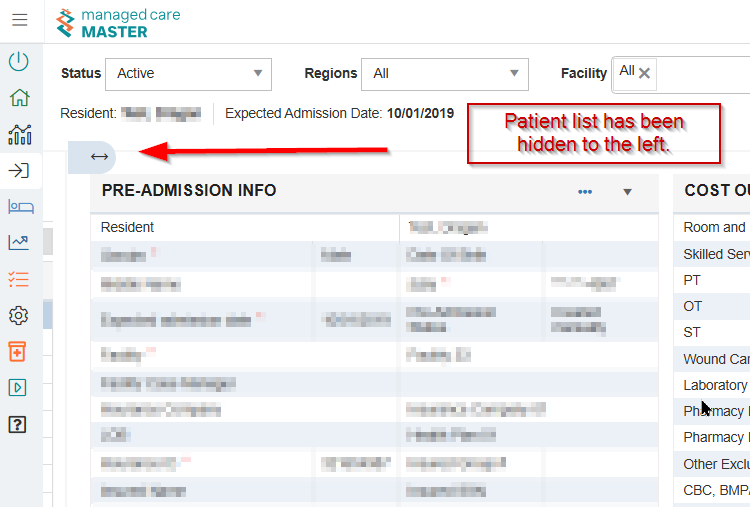
Use the Column Slider to hide the Patient list from the screen.
-
The image below displays the screen with the Patient list hidden.