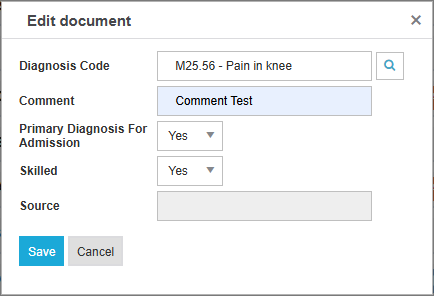
The Diagnosis Tile displays diagnosis codes that pull over from the EHR system. The resident’s primary diagnosis will show at the top of the list.
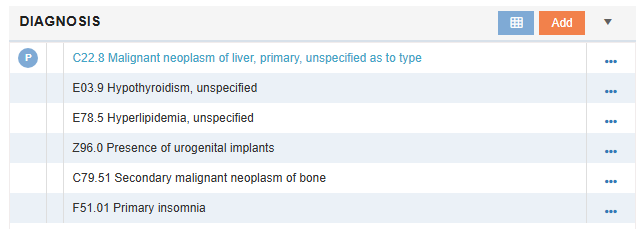
|
Diagnosis Code |
Alphanumeric code. Can be searched using the magnifying glass icon. |
|
Comment |
Comments visible to all users who have access to the patient’s stay. |
|
Primary Diagnosis For Admission |
Yes/No flag to indicate primary diagnosis code. |
|
Skilled |
Yes/No flag to indicate if diagnosis can be treated by skilled post-acute care. |
|
Source |
Indicates if record was received by EHR. |
Add Diagnosis Code
If the resident’s diagnosis code(s) do not pull over from the EHR, users may manually enter them.
-
In the Diagnosis tile, select Add.

-
Select the Magnifying Glass icon.
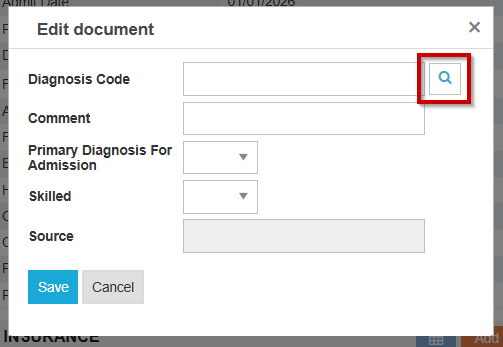
-
Search for the diagnosis by clicking the ellipsis, then filter, and enter a desired keyword or diagnosis code. Then select Filter.
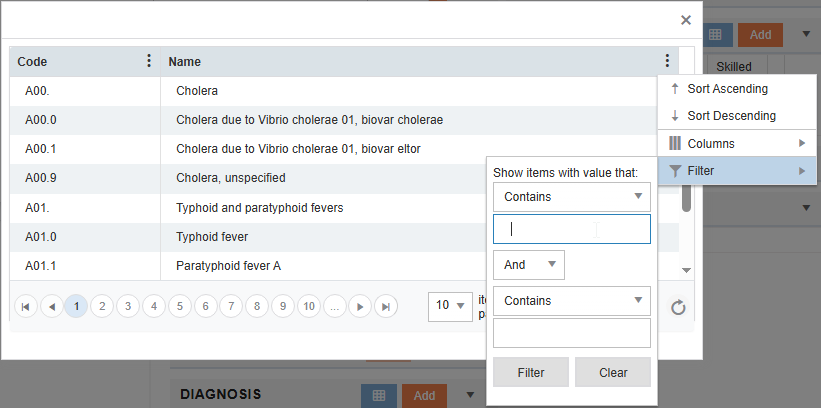
-
Once the search is complete, double click the code on the left side, which will fill in the diagnosis code in the Add screen. Use the Comment section to add comments and the drop-downs for indicating whether the diagnosis is considered Primary and Skilled.
-
Click Save.