Tutorial
The Patient Update/Managed Care Meeting tile allows you to electronically fill out a Concurrent Review within MCM.
Date of form started, payer name of form, and if marked as “Ready to Send”, or “Sent” will show on the list of started or completed forms.

Start a New Form
-
Click “New” to start a new Concurrent Review. Select the form needed from the dropdown menu that appears.

-
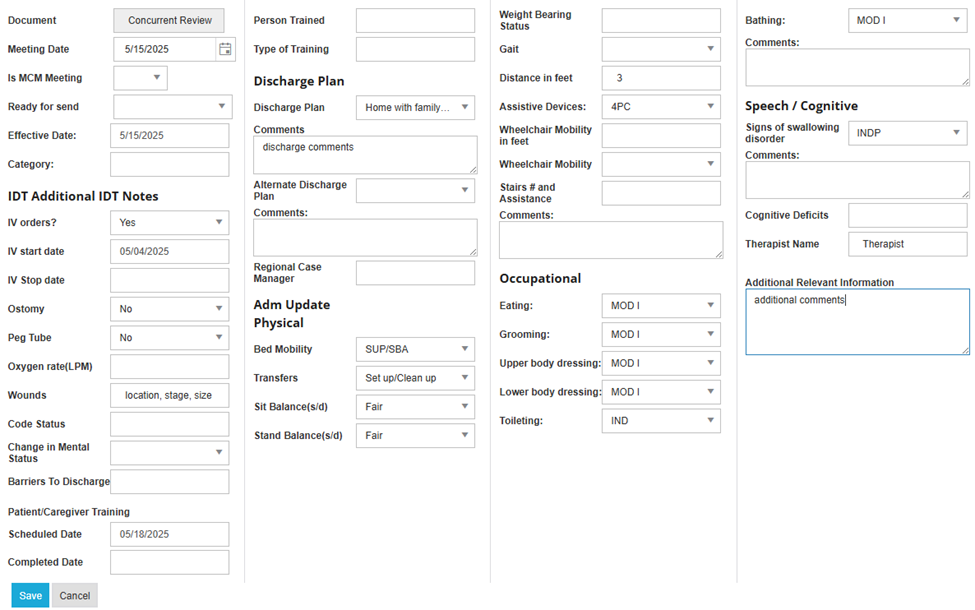
Fill in the fields of the form, and click save.
-
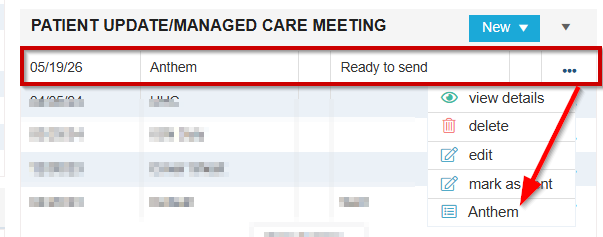
Generate the completed form by clicking the ellipsis next to the name of the form. Click on the form name from the drop down menu.
-
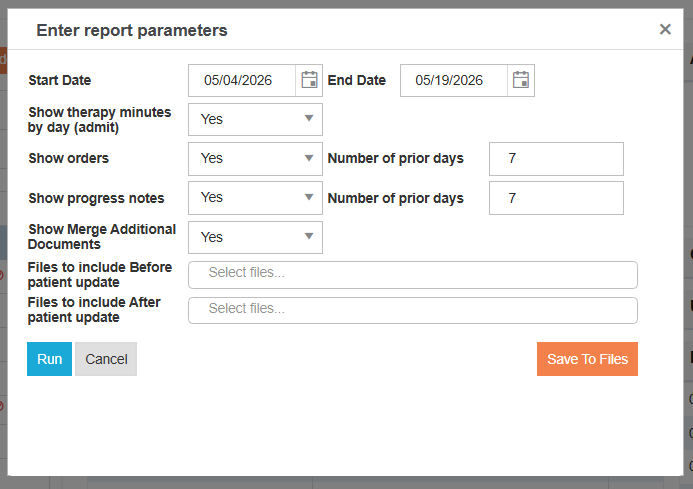
Complete Report Parameters
💡 The report parameters will allow you to add the therapy minutes, orders, progress notes, etc. Here you will be able to add uploaded files saved in the Files tile. Also you will be able to save directly to the Files tile by clicking “Save to Files” or simply pulling the form by clicking “Run”.
-
Click Run or Save to Files
💡 By default, when starting an additional form, all information from the previous form in the tile list will automatically populate over into the new form for easy updating.