
Reports in MCM can have their parameters saved to My Favorites for quick access to run again. These favorites are user specific and are placed at the bottom of the report list on the left hand navigation report menu.
Once a report has been saved to My Favorites, it can then be optionally scheduled to run and be delivered by email to specific users within MCM.
Saving to My Favorites
-
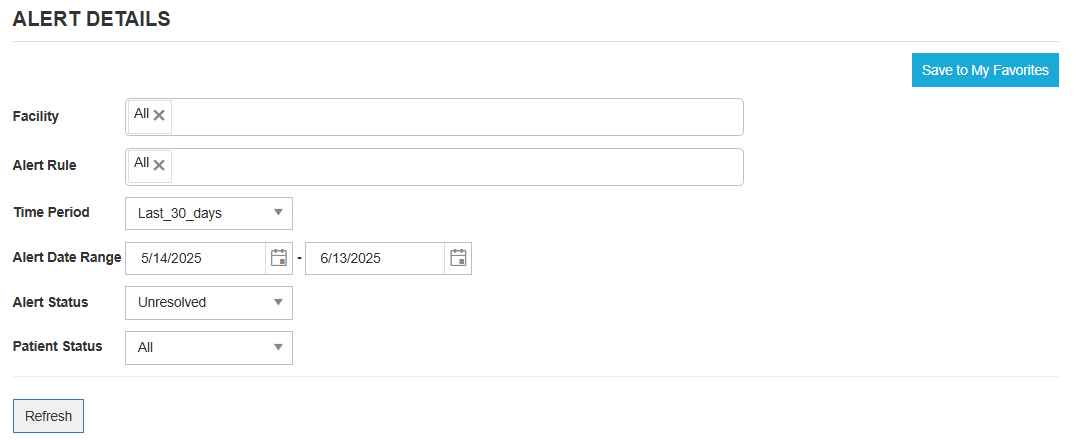
Select report you wish to run. Configure parameters - these will be saved as part of the favorite.
-
Click Refresh
-
Click blue “Save to My Favorites” button on top right.
-
Give the saved report a name for easy identification - e.g. Alert Details - 30 days Unresolved
-
Your report should now be down in the bottom of the Report list
Scheduling Reports via Email (part 1 - Save Schedule)
-
Under My Favorites in bottom left of report list, click the name of the report you wish to schedule.
-
Select “Schedule Report”
-
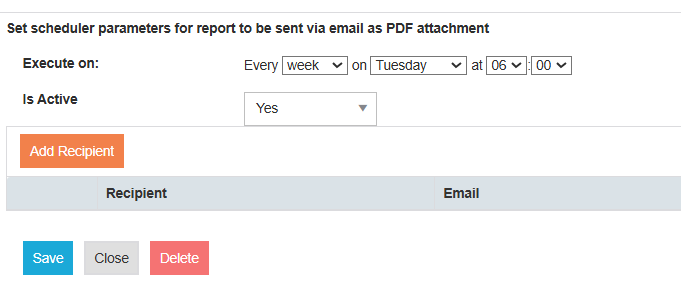
Complete the pop-up sections:
-
Execute on: select the frequency of the email you wish to receive. E.g. Week for Weekly. This changes the rest of the parameter so you can enter when you want the report ran and delivered. Time is local and in military standard.
-
Is Active: select Yes unless you do not want to have the report scheduled.
-
Do not Add Recipient before you save the initial schedule.
-
Click Save
-
Scheduling Reports via Email (part 2 - Add/Edit Recipients)
-
Select “Schedule Report” again
-
Select “Add Recipient”
-
Use the Recipient drop-down to select User of email who will receive the report
-
Enter in the Email of the recipient
-
Click on the check mark to the left of the Recipient name ✔️
-
Click Save
Your report should now be scheduled and will generate and run the next time the frequency criteria are met.
If your report does not run at the scheduled time, please reach out to service@managedcaremaster.com to ensure report delivery is enabled.